User Guide for Logging In to the Student Information Station Using an Academic Email Address

This guide describes the steps to obtain an academic email address from the Ono Academic College.

It is important to note that the academic email address has the suffix:

User.name@365.ono.ac.il

Below are the steps to obtain an academic email address and connect to an information station with an academic email address:

  1. Visit the Ono Academic Campus website at ono.ac.il.
  2. In the top bar, click on 'Personal Area' and select 'Students'.Top bar - 'Personal Area' button. Below it is 'Students' with a red frame. Below it in the menu are Students, Faculty, Enrollees. In the top bar, click on 'Personal Area' and select 'Students'.
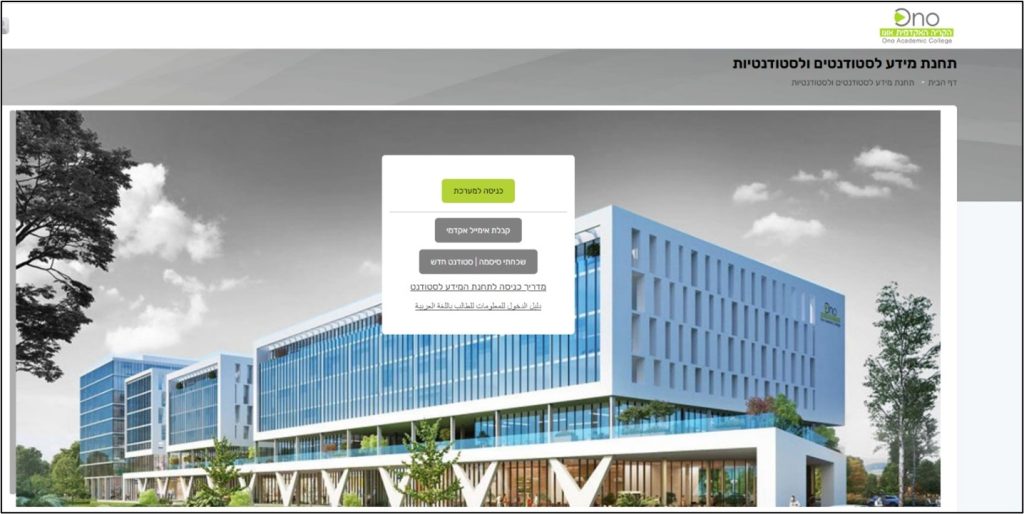
  3. Clicking on 'Students' will bring up the following screen:
    To log in using your academic email address, click the 'Login' button.In the center of the screen: Top button - Login to the system, which must be clicked. Below is the button to receive an academic email, below is the button I forgot my password | New student. In the background is a simulated image of the new Ono campus. Clicking on 'Students' will bring up the following screen:
    To log in using your academic email address, click the 'Login' button.
  1. If you do not know your academic email address, click the 'Get Academic Email' button.
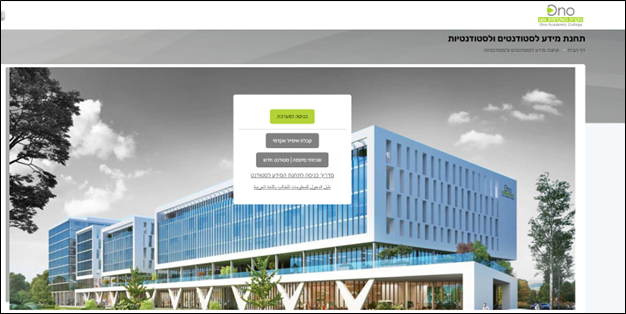
    In the center of the screen: Top button - Login to the system. Below is a button to receive an academic email that must be clicked, below it is a button I forgot my password | New student. In the background is a simulated image of the new Ono campus.
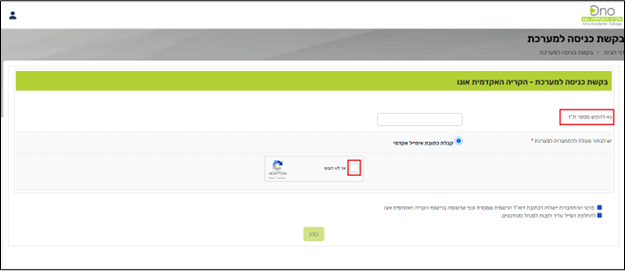
  2. On the resulting screen, enter:
    • ID number
    • Please tick 'I am not a robot'
      A "Please enter ID number" field is displayed for filling in and a "I am not a robot" field is displayed for filling in.
  1. Finally, click the Follow button to receive an academic email address.

The academic email address is sent to your private email address according to what you provided during the registration phase.

Upon receiving an academic email address from the Ono Academic College, you can now log in using this identification.

Below is the order of operations for logging into the information station using an academic email address of the Ono Academic College:

  1. Visit the Ono Academic Campus website at ono.ac.il.
  2. In the top bar of the site, click on 'Personal Area' and select 'Students'.
    When clicking on 'Students', click on the button: 'Login' In the center of the screen: Top button - Login to the system. Below is the button to receive an academic email, below is the button I forgot my password | New student. In the background is a simulated image of the new Ono campus.
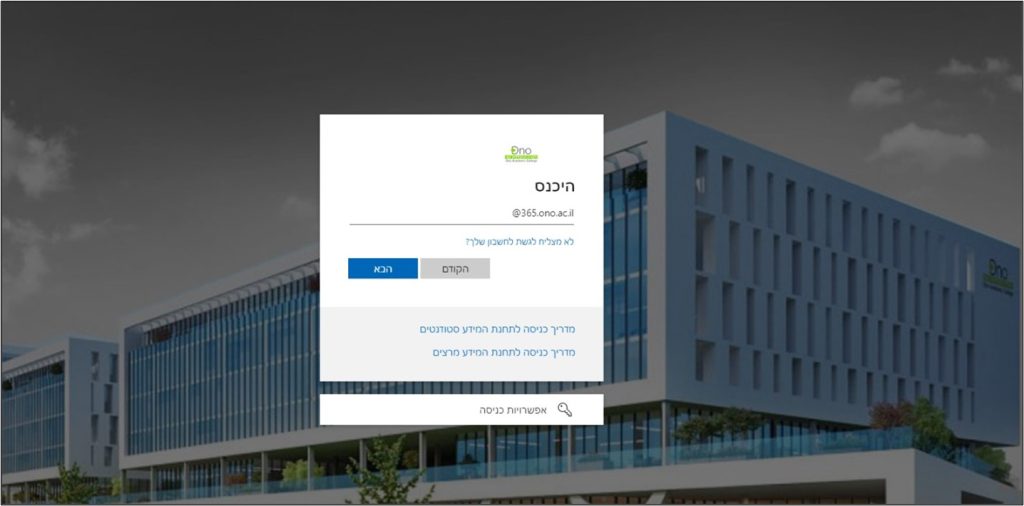
  1. On the resulting screen, enter the full academic email address you received with the extension .
    User.name@365.ono.ac.il
    Then click the 'Next' button.
    An email field is displayed to enter an academic email.
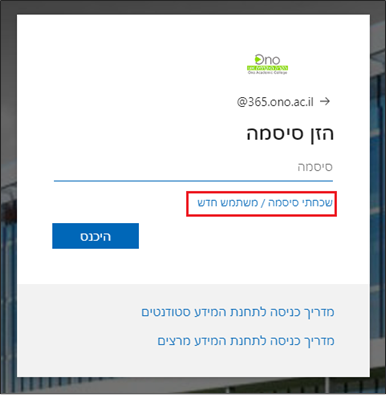
  2. If you do not have a password, click on the 'Forgot Password / New User' link.
    A password field is displayed and below it a link "I forgot my password/New user" and below it a button |Login". Below it appear 2 links to guides for logging in to the Student Information Station and below it to the Lecturer Information Station.
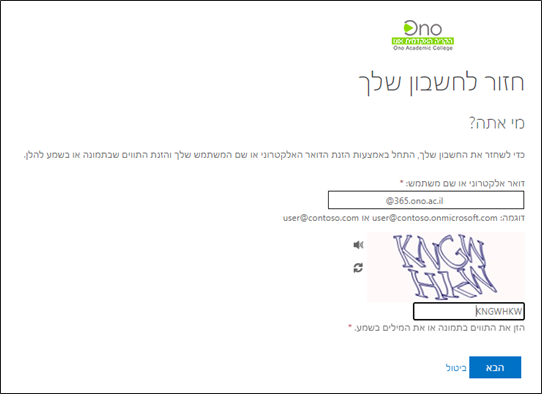
  3. On the resulting screen, enter the details and click the 'Next' button.
    A text code verification field appears. To the left of the text to type is a speaker button to read the text to type.
  4. On the resulting screen, enter your mobile number and click the text button:
  5. On the next screen, enter the code received via SMS on your mobile phone and click 'Next'.
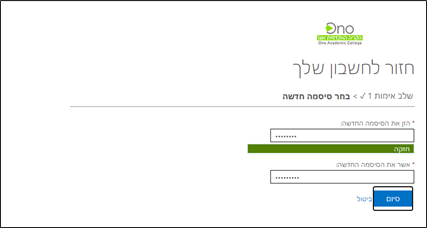
  6. On the next screen, enter a new password composed as follows:
    • The password must contain at least 8 characters.
    • All passwords must contain both letters and numbers.
    • Avoid using a password you have already used.
    • Avoid consecutive letters or numbers.
    • Identical characters should be avoided.
      After typing the new password in both fields, click the 'Finish' button.2 fields are displayed for typing a new password, identical in both fields. Below them is a completion field.
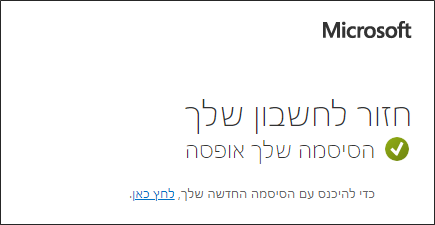
  1. On the resulting screen, click on the link: Click here to log in with the new password.
    The text "Return to your account. Your password has been reset" is displayed. Below is a link to log in with the new password.

If there is a problem connecting, you can contact the OnoIT technical support center via

Contact via WhatsApp message only by clicking on this link

Or to the number 050-5311124 (you must first save the number in your mobile contacts)

Navigation Menu

Tax Authority systems in Israel are a group of systems; the transition to cloud-based systems in Israel is designed to improve the service.

The Tax Authority systems include the following main systems: Income Tax, Property Tax, VAT, Customs and Collection.
The systems provide services in various areas of reforms, institutions that are not subject to VAT and also information for assessors, representatives and the public.

The emphasis on accessibility in the Tax Authority systems is reflected both in the external design and in the internal design.

The internal design focuses on building and managing accessible digital forms for handling VAT and Customs, as well as for handling business in Income Tax, VAT and Customs.

The authorities of the judiciary in Israel are divided between the Supreme Court. The Supreme Court serves as an appellate instance for judgments of the District Courts in Israel, and as a High Court of Justice. When sitting as a High Court of Justice, it hears appeals against the decisions of the District Courts, the Magistrates Courts and the Religious Courts. There are three types of appeals: the High Court of Justice, District Courts and Magistrate Courts.

The powers of the judiciary are influenced by the changes in the powers of the investigative authorities and the prosecuting authorities, in order to allow scrutiny and expansion on the history of the judiciary and its influence in the State of Israel.