
User Guide for Obtaining an Academic Email Address
For identity verification upon entering to the information desk Student
This guide outlines the procedures for obtaining an academic email address from Ono Academic College.
It is important to note that the academic email address ends with:
Here are the steps for obtaining an academic email address and contacting the station theInformation Desk using an academic email address:
- Please access the site via the link ono.ac.il.
- In the top bar, select "Personal Area" and click on "Students"

- After clicking on "Students" This screen appears:
Please click on the button: "Try the new identification method"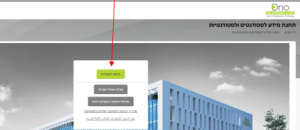
- Please click on the button: "What is the personal academic email address? " As shown in the following screenshot:

- In the resulting screen, enter the following information:
- ID Number
- Please click on "Get Academic Email".
- Please check the "I am not a robot" box.
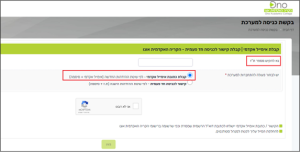
- Upon completion, please click the "Follow" button to receive an academic email address.
The academic email is sent to the personal email address you provided in the registration form.
User Guide for Accessing the Student Information Portal
via Academic Email
Once you have your academic email address, you will be able to access the student information portal.
Here are the steps for obtaining an academic email address and contacting the station theInformation Desk using an academic email address:
- Please access the site via the link ono.ac.il.
- In the top bar, select "Personal Area" and click on "Students"
- When clicking the button "Students" And then click on: "Experience the new identification method" Please click on "Login via academic email" As shown in the following screen:

- On the displayed screen, you must enter the academic email address you received.
And ends with:
Then click the button "Next"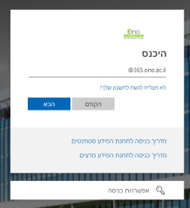
- If you do not have a password, please click on the link "Forgot Password / New User"
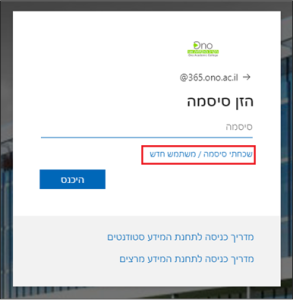
- On the displayed screen, please enter the information and then click the button "Next"
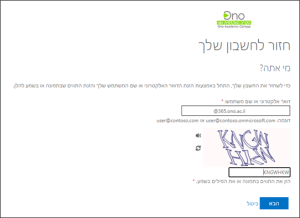
- On the displayed screen, you must enter your personal phone number:
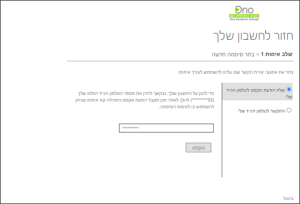
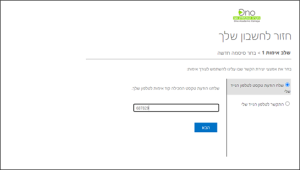
- On the displayed screen, you must enter the code you received via message, and then click the button. "Next"
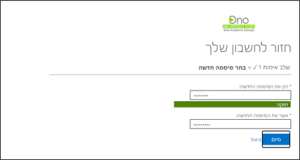
- On the displayed screen, you must enter a password created according to the following method:
Password requirements:
The password must contain 8 characters
· The password must contain letters and numbers
· Do not use a password that has been used before
· Do not use consecutive letters or numbers
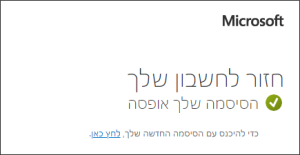
· Do not use identical letters or numbers Please enter the password you created in both fields as shown on the screen, then click the "" button.Completion"
On the displayed screen, please click on the link: Click here To log in using a password
In case of connectivity issues, you can reach out to the OnoIT technical support center
by sending a WhatsApp message only via the link
or to the number 050-5311124 (you must first save the number in your mobile phone contacts)