
This guide provides instructions for obtaining your academic email address and then using it to log into the Ono Academic Campus student information system (Yedion).
Important: Your official academic email address ends with: @365.ono.co.il
Part 1: How to Get Your Academic Email Address
- Go to the Website: Enter the Ono Academic Campus website at: ono.ac.il/eng
- Navigate to the Student Portal: In the top navigation bar, click on 'Personal Area' and select 'Students'.
picture - Find the Login Screen: After selecting 'Students,' a new screen will appear.
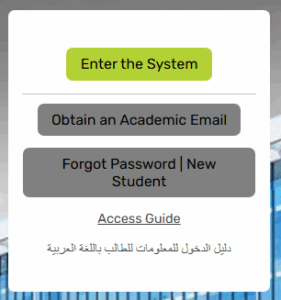
- Obtain Your Email: If you do not know your academic email address, click the 'Obtain an Academic Email' button.
- Enter Your Details: In the screen that appears, enter your ID number.
- Check the box 'I am not a robot'.
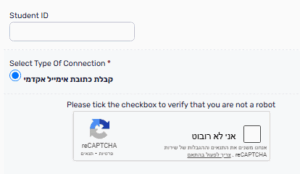
- Click the button to finalize the request for your academic email address.
- The academic email address will be sent to the private email you provided during the registration process.
- Check the box 'I am not a robot'.
Part 2: First-Time Login to the Student Information System (Yedion)
Once you have received your academic email address, follow these steps to log in:
- Accessing the Login Screen
- Return to the Website: Go to ono.ac.il/eng.
- Open the Student Portal: In the top bar, click on 'Personal Area' and select 'Students'.
- Start Login: On the screen that appears, click the button: 'Enter the System' (or 'Login to System').
- Setting Your Password
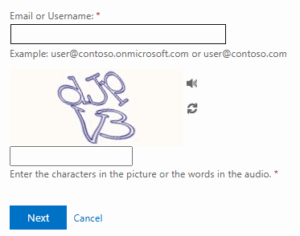
- Enter Your Email: In the login screen, enter your complete academic email address (including the @365.ono.co.il suffix).
- Click the 'Next' button.
- Reset/New User: If you do not have a password, click the link 'Forgot Password / New User'.
- Verify Your Identity:
- In the screen that appears, enter the requested details and click 'Next'.
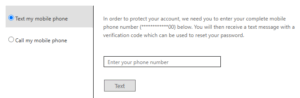
- Enter your mobile phone number and click the 'Text' button (or equivalent).
- Enter the Code: In the next screen, enter the SMS code received on your mobile phone and click 'Next'.
- Create a New Password: On the final screen, enter a new password that meets the following criteria:
- Must contain at least 8 characters.
- Must contain both letters and numbers.
- Avoid passwords you have used previously.
- Avoid consecutive letters or numbers (e.g., 1234 or abcd).
- Avoid identical characters (e.g., aaaa).
- After entering the new password in both fields, click the 'Finish' button.
- Final Login
- Use New Password: In the screen that appears, click the link: Click here to log in with the new password.
Technical Support
If you experience any problems logging in, please contact the OnoIT technical support center:
- WhatsApp ONLY: Contact them by clicking on this link or by sending a message to the number 050-5311124 (save the number in your contacts beforehand).